> For the complete documentation index, see [llms.txt](https://docs.famewall.io/llms.txt). Markdown versions of documentation pages are available by appending `.md` to page URLs; this page is available as [Markdown](https://docs.famewall.io/wall-of-fame-page-settings/navigation-links.md).
# How to add menu links to the top of your Wall of Fame page
Add menu links, like Home, Pricing or Contact, to the top of your Wall of Fame page so visitors can get back to your website.
Visitors who land on your Wall of Fame page should be able to get back to your website. Add a few menu links to the header, such as **Home**, **Services** or **Contact**.
## Steps
1. Open your wall and click **Wall of Fame Page** in the left menu.
2. Open the **Wall of Fame Header** panel and find **Navigation Links**.
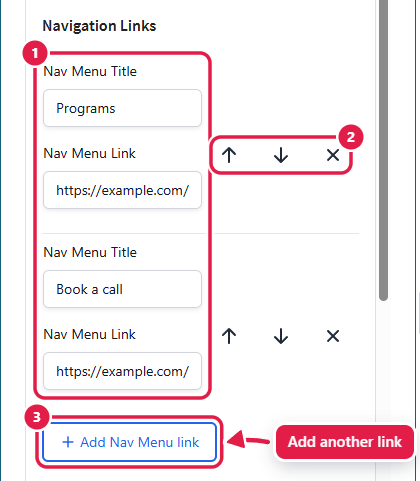
3. Fill in the **Nav Menu Title** (the link text) and the **Nav Menu Link** (the web address).
4. Click **Add Nav Menu link** for each extra link. Use the arrows to change the order, or **✕** to remove a link.
5. Click **Save Wall of Fame Changes**. Editing links doesn't make the save button glow, so make sure you save.
Add a title and an address for each menu link
Menu links appear at the top right of your page
## How the links look
On computers the links sit at the top right of the page. On phones and tablets they're tucked into a menu icon. Every link opens in a new tab.
## Good to know
* A link needs both a title and an address. Rows with only one of the two are removed when you save.
* If you leave out `https://`, it's added for you.
* Menu links aren't available on the **Simple** design.
* When you embed the whole Wall of Fame page on your website, the embed code hides the menu, because your website already has one. See [How to embed your whole Wall of Fame page](/wall-of-fame-page-settings/embed-wall-of-fame-page.md).
* Menu link titles aren't translated when automatic translation is on.
## Related
* [How to add a call-to-action button to your Wall of Fame page](/wall-of-fame-page-settings/call-to-action-button.md)
* [How to change your Wall of Fame page design](/wall-of-fame-page-settings/change-page-design.md)