> For the complete documentation index, see [llms.txt](https://docs.famewall.io/llms.txt). Markdown versions of documentation pages are available by appending `.md` to page URLs; this page is available as [Markdown](https://docs.famewall.io/publishing-sharing-and-branding/connect-custom-domain.md).
# How to put your Wall of Fame page or collection page on your own domain
Serve your Wall of Fame page, collection page or brand page from your own subdomain, like testimonials.yourbrand.com. Step-by-step CNAME setup and troubleshooting.
Instead of `wall.famewall.io/your-wall`, your Wall of Fame page can live at an address like `testimonials.yourbrand.com`. The same works for collection pages and brand pages. You add one DNS record at your domain provider, and Famewall takes care of the rest, including HTTPS.
{% hint style="info" %}
Custom domains need a paid plan. Standard includes 4 domains, Professional 10, and Business and Agency are unlimited.
{% endhint %}
## Step 1: Add the domain in Famewall
Pick the page you want on your domain:
* **Wall of Fame page**: open your wall → **Wall of Fame Page** → **Domain Configuration** panel.
* **Collection page**: open your wall → **Collection Page** → **Custom Domain** panel. The collection page needs to be created first.
* **Brand page**: **Brand Pages** in the sidebar → open the page → **Custom Domain** panel.
Then:
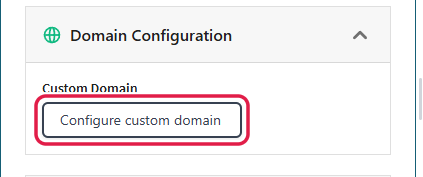
1. Click **Configure custom domain**.
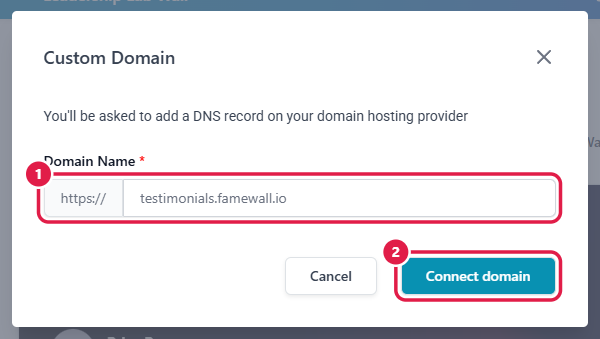
2. Type your subdomain in **Domain Name**, for example `testimonials.yourbrand.com`. Leave out `https://` and any path.
3. Click **Connect domain**.
Start from the domain panel of the page you want on your domain
Type your subdomain and click Connect domain
## Step 2: Add the CNAME record at your domain provider
Famewall now shows the DNS record to add. Sign in to wherever you manage your domain (GoDaddy, Namecheap, Cloudflare, Google Domains and so on) and add:
| Type | Name | Value |
| ----- | ------------------------------------------ | ------------------------- |
| CNAME | your subdomain, for example `testimonials` | `external.famewall.cloud` |
Some providers want the full name (`testimonials.yourbrand.com`), others only the first part (`testimonials`). If your provider adds your domain automatically, use the short version.
## Step 3: Verify
Back in Famewall, click **Verify DNS Record**. When the record is found, the status changes to **Connected** and your page is live on your domain.
DNS changes can take up to an hour to spread. If verification fails with "Could not find CNAME record", wait a while and click **View & Verify Domain** → **Verify DNS Record** again.
## Troubleshooting
* **Use a subdomain.** Root domains like `yourbrand.com` and subfolders like `yourbrand.com/reviews` aren't supported.
* **Cloudflare users:** set the record to **DNS only** (grey cloud). With the proxied (orange cloud) setting, the CNAME record is hidden and verification can't find it.
* **Check the record** with a free tool like dnschecker.org. The CNAME should point to `external.famewall.cloud`.
* **"The domain already exists"** means the domain is already added in Famewall, possibly on another page.
## Good to know
* Custom domains are for Wall of Fame pages, collection pages and brand pages. Testimonial widgets are embedded on your own website, so they don't need one.
* Once your domain is connected, the Wall of Fame **Share** window gives you links and embed codes that use it.
* If you plan to delete a page or wall, delete its custom domain first with **Delete Domain**. That keeps the domain free to use elsewhere.
## Related
* [Set Custom domain](/set-custom-domain.md)
* [How to embed your whole Wall of Fame page on your website](/wall-of-fame-page-settings/embed-wall-of-fame-page.md)