> For the complete documentation index, see [llms.txt](https://docs.famewall.io/llms.txt). Markdown versions of documentation pages are available by appending `.md` to page URLs; this page is available as [Markdown](https://docs.famewall.io/collection-page-settings/twitter-shoutout-button.md).
# How to add a "Share on X (Twitter)" shoutout button to your collection page
Add a button to your collection page that opens X (Twitter) with a ready-written post mentioning you, so happy customers can give you a public shoutout.
Besides leaving a testimonial, some customers are happy to post about you publicly. The shoutout button opens X (Twitter) with a post already written that mentions your handle. The customer only has to click **Post**.
## Steps
1. Open your wall and click **Collection Page** in the left menu.
2. Open the **Testimonial Home Page & Configuration** panel and scroll to **Testimonial types**.
3. Turn **off** **Disable Twitter shoutouts**. It's on by default, which hides the button.
4. Open the **Twitter Action Customization** panel, which appears once the button is enabled.
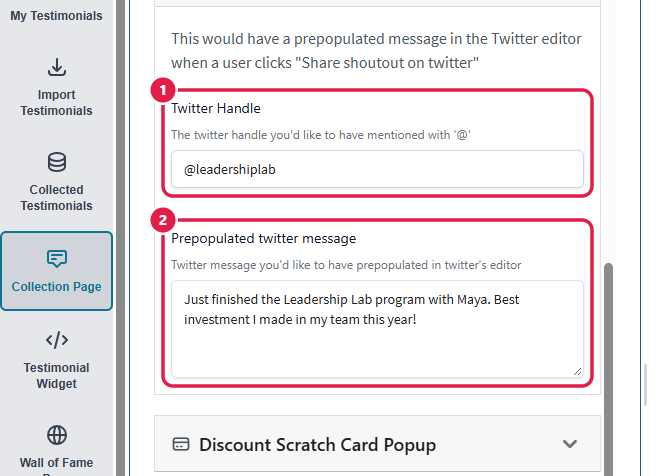
5. Enter your **Twitter Handle**, for example `@yourbrand`.
6. Write the **Prepopulated twitter message**, the post customers will see pre-filled.
7. Click **Save Edit Changes**.
Your handle (1) is added to the pre-written post (2)
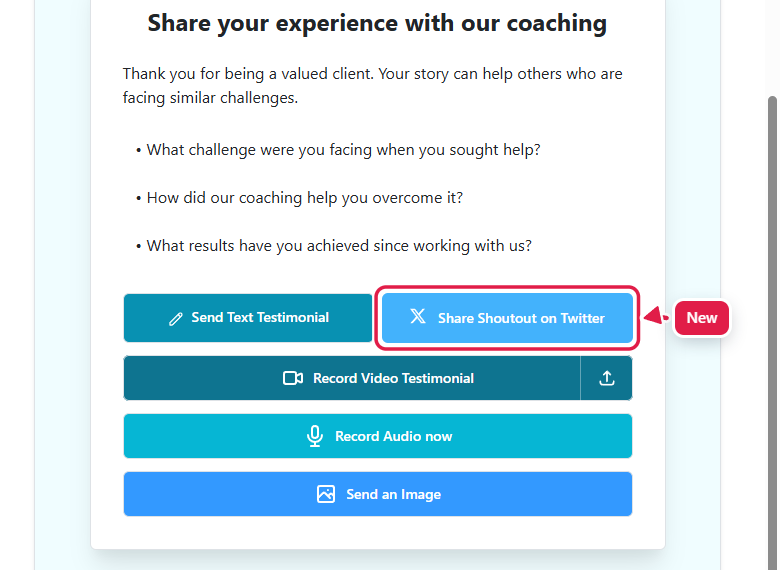
The shoutout button appears next to your other testimonial buttons
## Good to know
* The post goes to the customer's own X (Twitter) account. It isn't collected into Famewall. To bring posts about you into your wall, use [Twitter Import](/twitter-import.md) or [Curated Twitter Mentions](/curated-twitter-mentions.md).
* Fill in at least the handle or the message. If both are empty, the button does nothing.
* Once saved, the handle and message can be changed but not emptied. To remove the button, turn **Disable Twitter shoutouts** back on.
* You can rename the button in **Fields & Button Text Customization** → **"Share Shoutout on Twitter" Button Text**.
## Related
* [How to turn off text, video or audio testimonials on your collection page](/collection-page-settings/turn-off-text-video-or-audio-testimonials.md)