> For the complete documentation index, see [llms.txt](https://docs.famewall.io/llms.txt). Markdown versions of documentation pages are available by appending `.md` to page URLs; this page is available as [Markdown](https://docs.famewall.io/collection-page-settings/redirect-after-submission.md).
# How to send customers to your website after they submit a testimonial
Add a button to the thank-you popup that takes customers to your website, a booking page or an offer after they submit their testimonial.
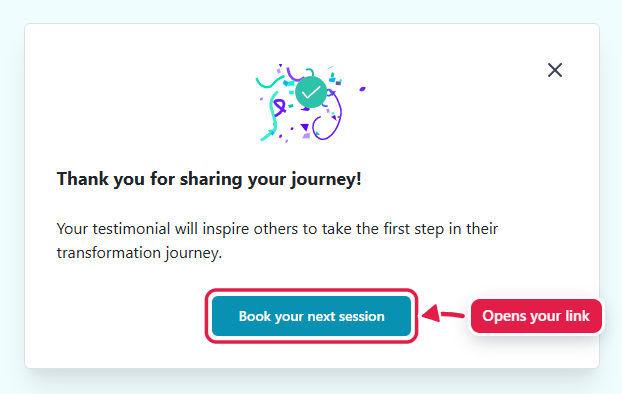
When a customer submits a testimonial, your collection page shows a thank-you popup. You can add a call-to-action button to that popup, for example "Back to our website" or "Book your next session", that opens any link you choose.
## Steps
1. Open your wall and click **Collection Page** in the left menu.
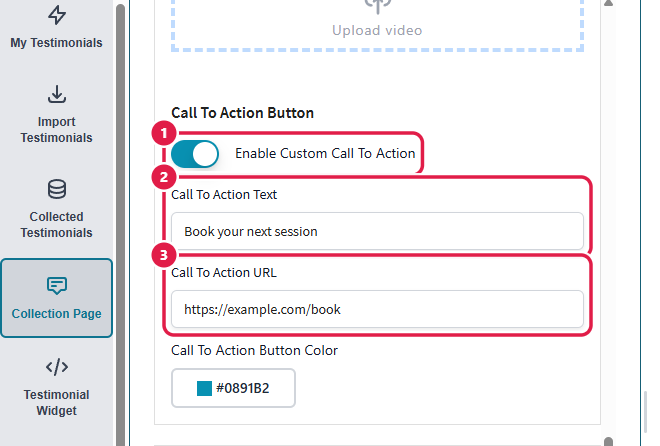
2. Open the **Thank you Popup** panel and scroll to **Call To Action Button**.
3. Turn on **Enable Custom Call To Action**.
4. Replace the **Call To Action Text** with your own button text. The default text is "Open Dashboard", so change it.
5. Paste the link into **Call To Action URL**.
6. Pick a **Call To Action Button Color** if you like.
7. Click **Save Edit Changes**.
Turn on the button, then set its text and link
The button appears in the thank-you popup customers see after submitting
## Good to know
* Customers aren't redirected automatically. The popup stays on screen, and your link opens in a new tab when they click the button.
* If you leave out `https://`, it's added for you.
* To remove the button, turn off **Enable Custom Call To Action**. Clearing the text or the link isn't enough, because empty values aren't saved.
## Related
* [How to change the thank-you message and add a thank-you video](/collection-page-settings/thank-you-message-and-video.md)
* [How to turn off the discount reward on your collection page](/collection-page-settings/turn-off-discount-scratch-card.md)