> For the complete documentation index, see [llms.txt](https://docs.famewall.io/llms.txt). Markdown versions of documentation pages are available by appending `.md` to page URLs; this page is available as [Markdown](https://docs.famewall.io/collection-page-settings/recording-screen-prompts.md).
# How to change the questions shown while customers record a video or audio testimonial
Change the guiding questions customers see while recording a video or audio testimonial, change the recorder title, and hide the "Write notes" button.
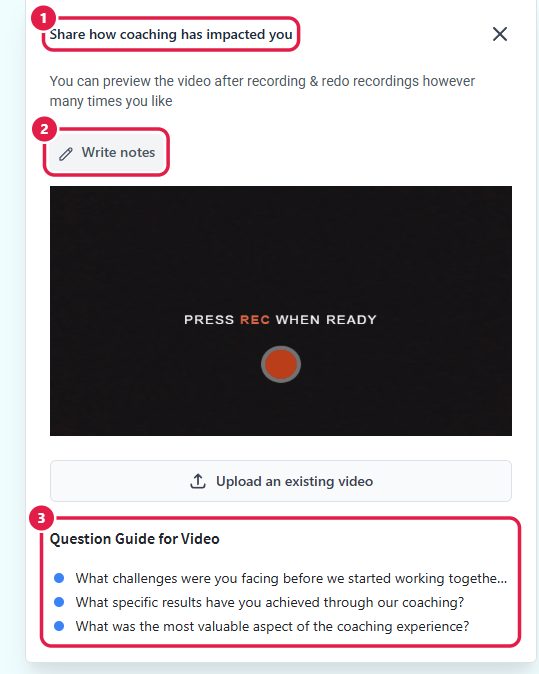
While customers record a video or audio testimonial, the recorder shows up to three short questions to guide them, like "How did you start using our product?". You can write your own questions for each recorder.
## Change the video questions
1. Open your wall and click **Collection Page** in the left menu.
2. Open the **Video Testimonial Page** panel.
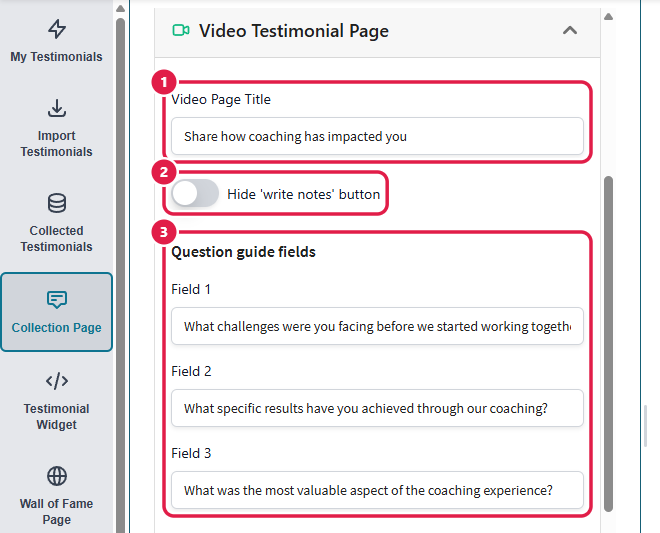
3. Edit the **Video Page Title**. It's shown at the top of the recorder.
4. Under **Question guide fields**, edit **Field 1**, **Field 2** and **Field 3**. Leave a field empty to hide that question.
5. Click **Save Edit Changes**.
The settings in the Video Testimonial Page panel
Where each setting appears in the recorder
## Change the audio questions
Audio testimonials have their own panel, so you can ask different questions there.
1. Open the **Audio Testimonial Page** panel.
2. Edit the **Audio Page Title** and the three **Question guide fields**.
3. Click **Save Edit Changes**.
## Hide the "Write notes" button
The recorder has a **Write notes** button that opens a small notepad. Customers can jot down what they want to say before they start recording. The notes stay on their screen and are never sent to you.
To remove the button, turn on **Hide 'write notes' button** in the **Video Testimonial Page** panel, the **Audio Testimonial Page** panel, or both, and save.
## Good to know
* Keep questions short. Customers read them while they talk to the camera.
* The heading above the questions says "Question Guide for Video" by default. You can rename it, and the "Write notes" button, in **Fields & Button Text Customization**.
* **Dot Color** in the **Video Testimonial Page** panel changes the colour of the bullet points. It needs a paid plan.
* A quick way to get good questions is to apply an industry template. See [How to set up your collection page with an industry template](/collection-page-settings/industry-templates.md).
## Related
* [How long can video and audio testimonials be?](/collection-page-settings/video-and-audio-length.md)
* [Getting video testimonials from customers](/getting-video-testimonials-from-customers.md)